
Support
How can we help
Everything you need to install AnyTeam and get more out of it. Search, or browse the guides.
Still need a hand?
Reach the team directly at theo@anyteam.com — we read every note and reply by email.
More ways to get help.


Set up AnyTeam
Install the app, sign in, build your profile, and connect your tools — about five minutes, once. Nothing's locked in; change any of it later in Settings.
Download
AnyTeam is a desktop app so it can capture your meetings. Pick the build for your computer — Version 3.18.151.
Not sure which to pick? On a Mac, click the Apple menu → About This Mac to see your chip (Apple Silicon vs. Intel) and macOS version, then grab the matching build.
Log in
- Open the .dmg (macOS) and drag AnyTeam to Applications, or run the installer (Windows), then launch it.
- Sign in with your work email and confirm in the browser window that opens — only work accounts are accepted.
- You return to the app automatically. Everything stays scoped to your workspace.
Build your profile
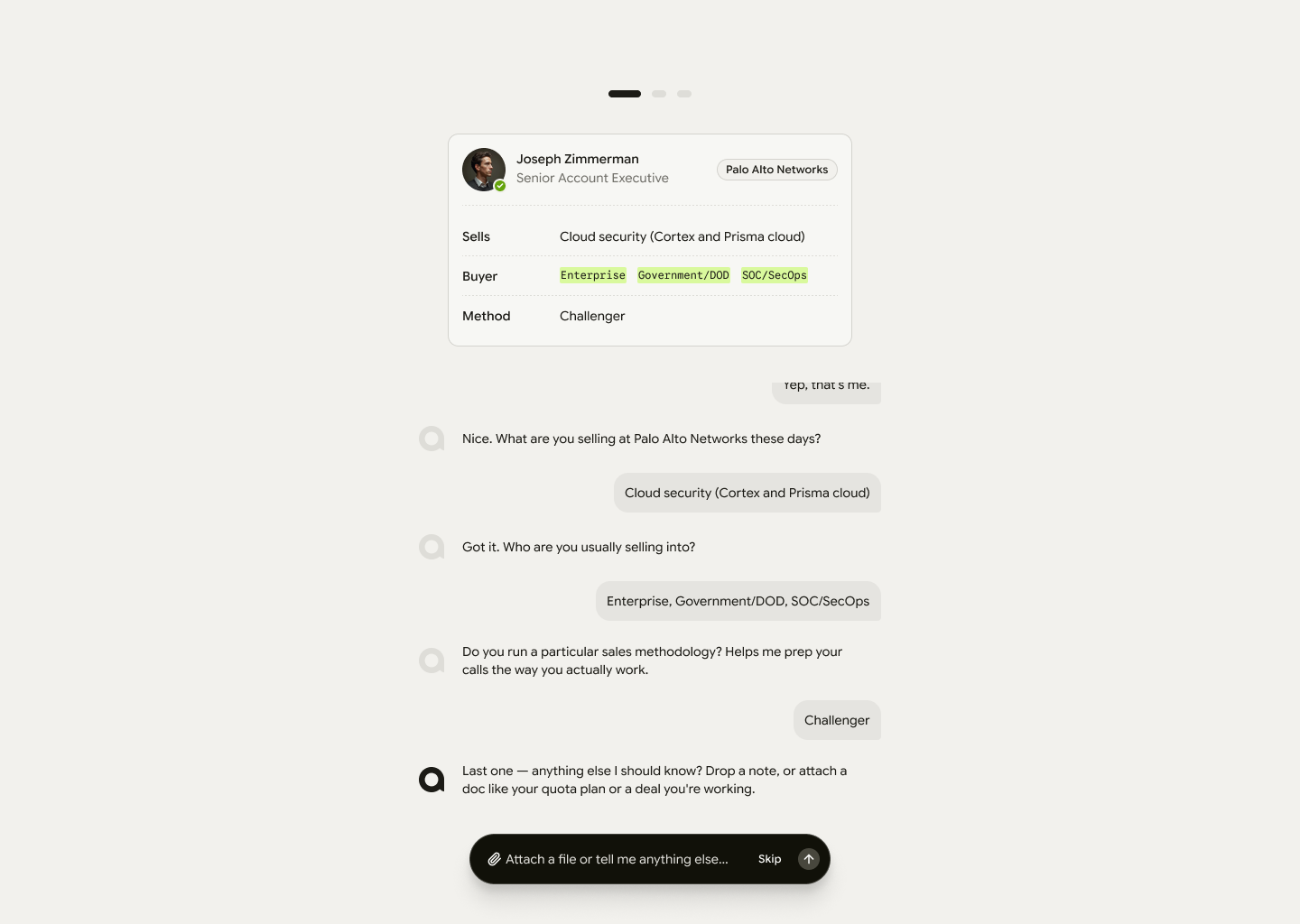
In a short chat, tell AnyTeam who you are, what you sell, and who you sell to — your role, product, market, and how you run a deal. This grounds everything it does in your world.
Connect your tools
The more you connect, the more AnyTeam can do — and you pick what to share.
- Google Workspace or Microsoft 365 — your calendar and email.
- Slack, plus your CRM: HubSpot, Salesforce, or Attio.
Full steps in . In tightly managed orgs, an admin may need to approve AnyTeam first. Not ready to connect anything? Explore in Demo Mode and link tools later.
Grant meeting permissions
To bring AnyTeam into your calls, grant a few system permissions when prompted — this is what lets Pilot join.
- macOS: Microphone, Screen Recording (for capture), and Accessibility (for meeting detection).
- Windows: Microphone — enable it in Windows privacy settings.
You're set
- AnyTeam builds your workspace from what you connected — your real meetings, accounts, and signals.
- You land on a live Home with no empty states. Start exploring.
Nothing outbound ever sends without your approval — no email, CRM write, or Slack post goes out until you say so.
Meeting prep
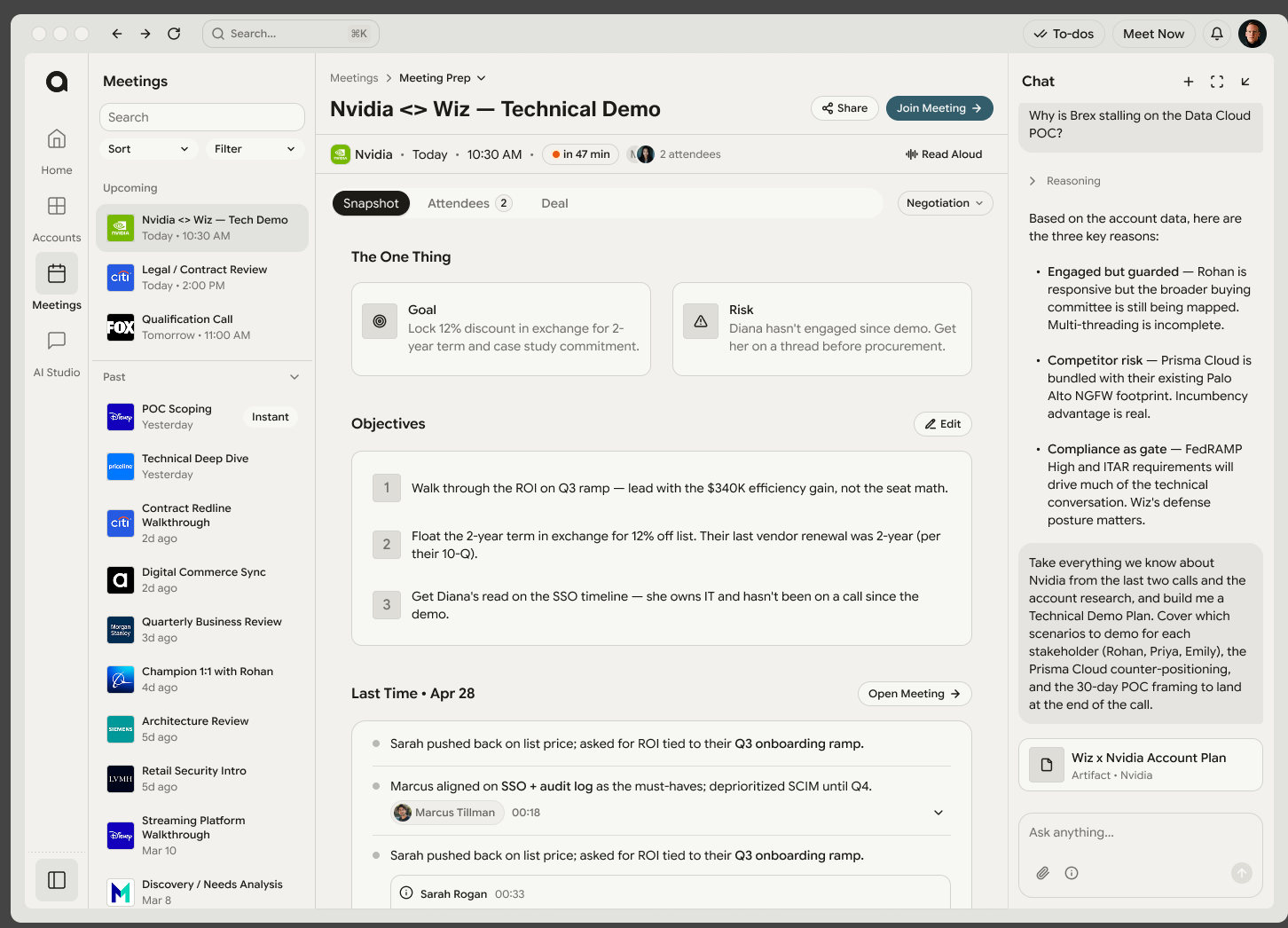
Before every external call, AnyTeam builds a brief automatically — no prompt — so you can walk in ready.
What you get
- Detects meetings on your calendar: Zoom, Google Meet, Teams, Slack huddles.
- A prep brief is ready about 10 minutes before each meeting — open the meeting's Prep tab.
- You get a reminder before the call starts.
In the brief
- Objectives and a suggested agenda.
- Attendees, with roles and quick guidance.
- Recent account news and open items from last time.
- Likely objections, and the one thing to focus on.
Every insight is source-cited — expand any item to see the record behind it. The brief updates quietly as new info arrives.
Meeting Pilot
Bring AnyTeam into any call and it transcribes live and surfaces help the moment it's useful — right beside Zoom or Google Meet. The more calls you run, the sharper its guidance.
Starting a call
- Click Meet Now (top-right on every screen), press the hotkey (⌥M Mac / Alt+M Windows), or start from Home or Meeting Prep.
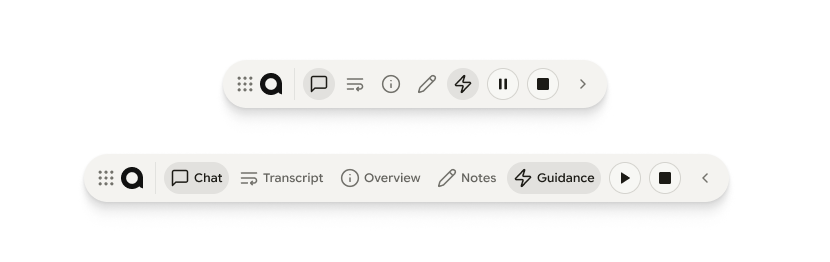
- The Pilot Bar floats next to Zoom or Meet the second the call connects — drag it anywhere.
- Pause captures a break in the recording; Stop ends the call and kicks off the summary.

The five panels
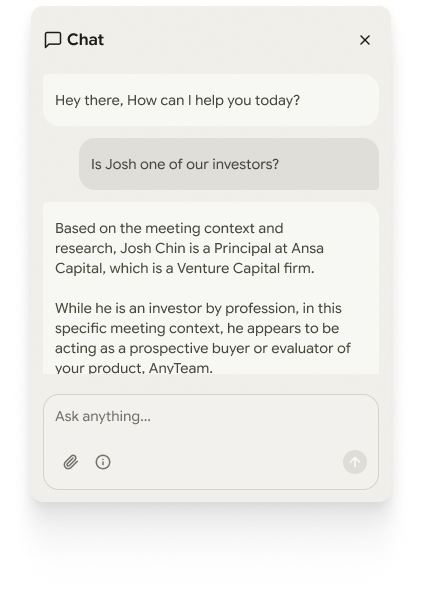
- Chat — ask about anyone or anything on the call, grounded in the transcript, your CRM, and your inbox.
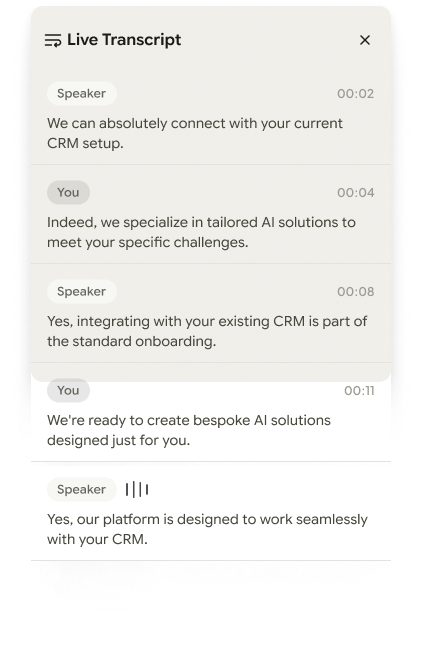
- Transcript — live captions with speaker labels and timestamps; search highlights matches, and every guidance card cites the line it fired from.
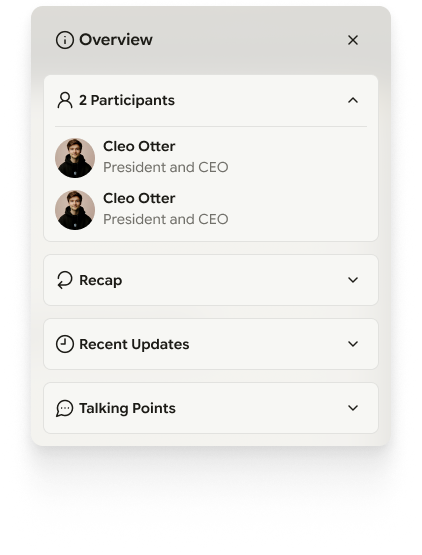
- Overview — who's on the call and their roles, a last-meeting recap, and updates since your prep.
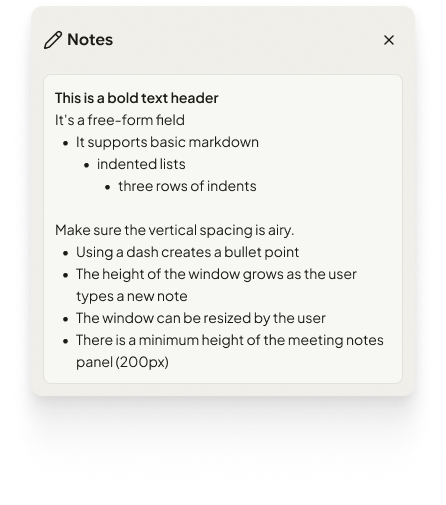
- Notes — a private scratchpad that never appears in shared summaries.
- Guidance — proactive cards, covered below.
Live guidance
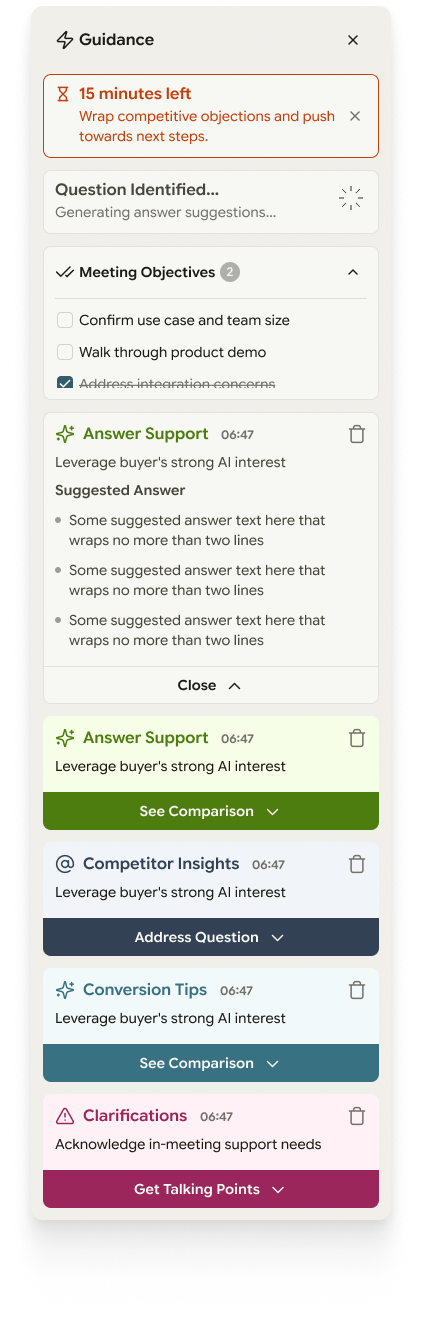
The Guidance panel watches the conversation and surfaces cards the moment they're useful — no prompt needed. Every card is pull, never push: nothing steals focus, and objectives tick off as you cover them.
Time reminders
Tiered alerts as you approach the wrap.
Meeting objectives
Pulled from your context — auto-tracked, ticking off in real time.
Answer support
Grounded talking points the second a hard question lands.
Competitor insights
Differentiation the moment a rival's name comes up.
Conversation tips
Phase-aware nudges to move the deal forward.
Clarifications
Recovery lines when an objection or confusion hits.
Unknown topics get flagged, not made up. Dismiss any card you don't need.
Recording permissions (macOS)
- On first capture, macOS asks for Microphone and Screen Recording. Approve both.
- Change later in System Settings → Privacy & Security.
- No transcript? Check those two permissions first.
Meeting summary
Within about a minute of hanging up, you get a summary of what the call produced — focused on what the prospect said, not your pitch.
In the summary
- A TLDR and key themes.
- Decisions, commitments, objections, and next steps.
- Sentiment, and the full transcript with speakers.
Every insight expands to a verbatim quote with speaker attribution. Empty sections are hidden rather than padded with filler.
The follow-up email, already written
AnyTeam drafts the recap email in your voice — grounded in what was actually said, with decisions, commitments, and next steps laid out. Review, tweak if you like, and send.
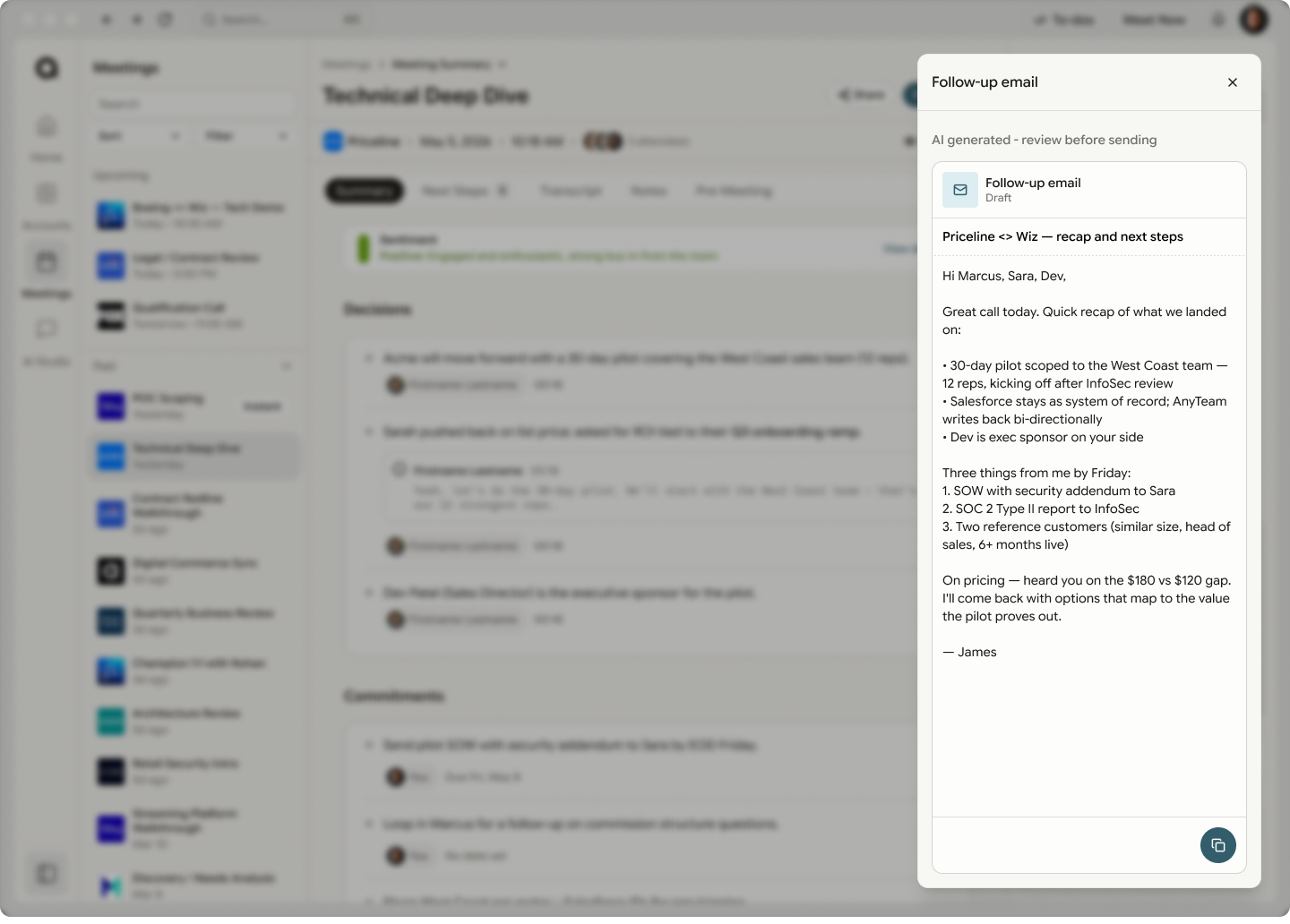
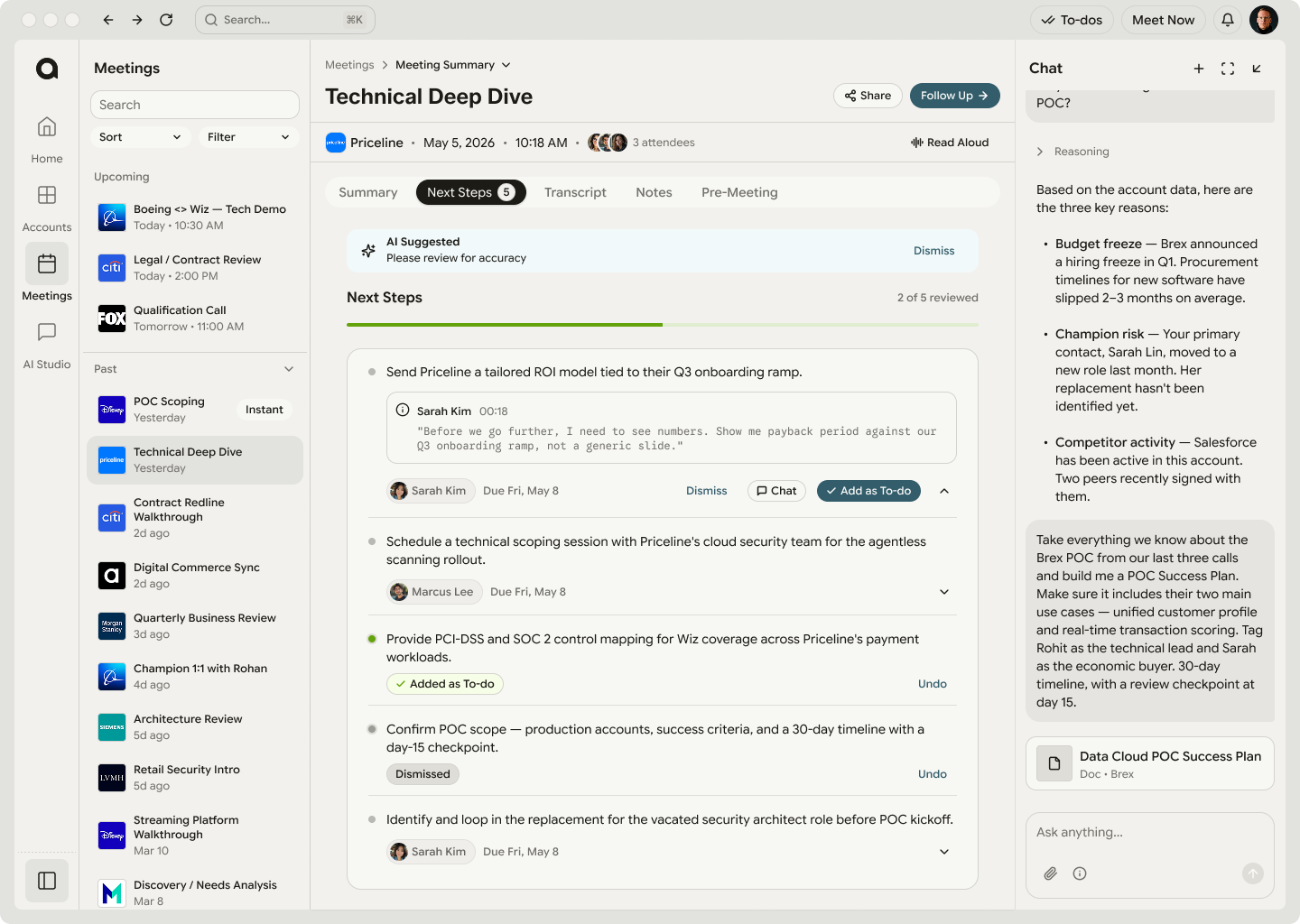
Next steps become to-dos
- Next steps and commitments are captured automatically.
- Add any of them to your To-dos in one tap — dismiss what you don't need.
- CRM updates are drafted too, and you can copy a link to share the summary with your team.
Chat
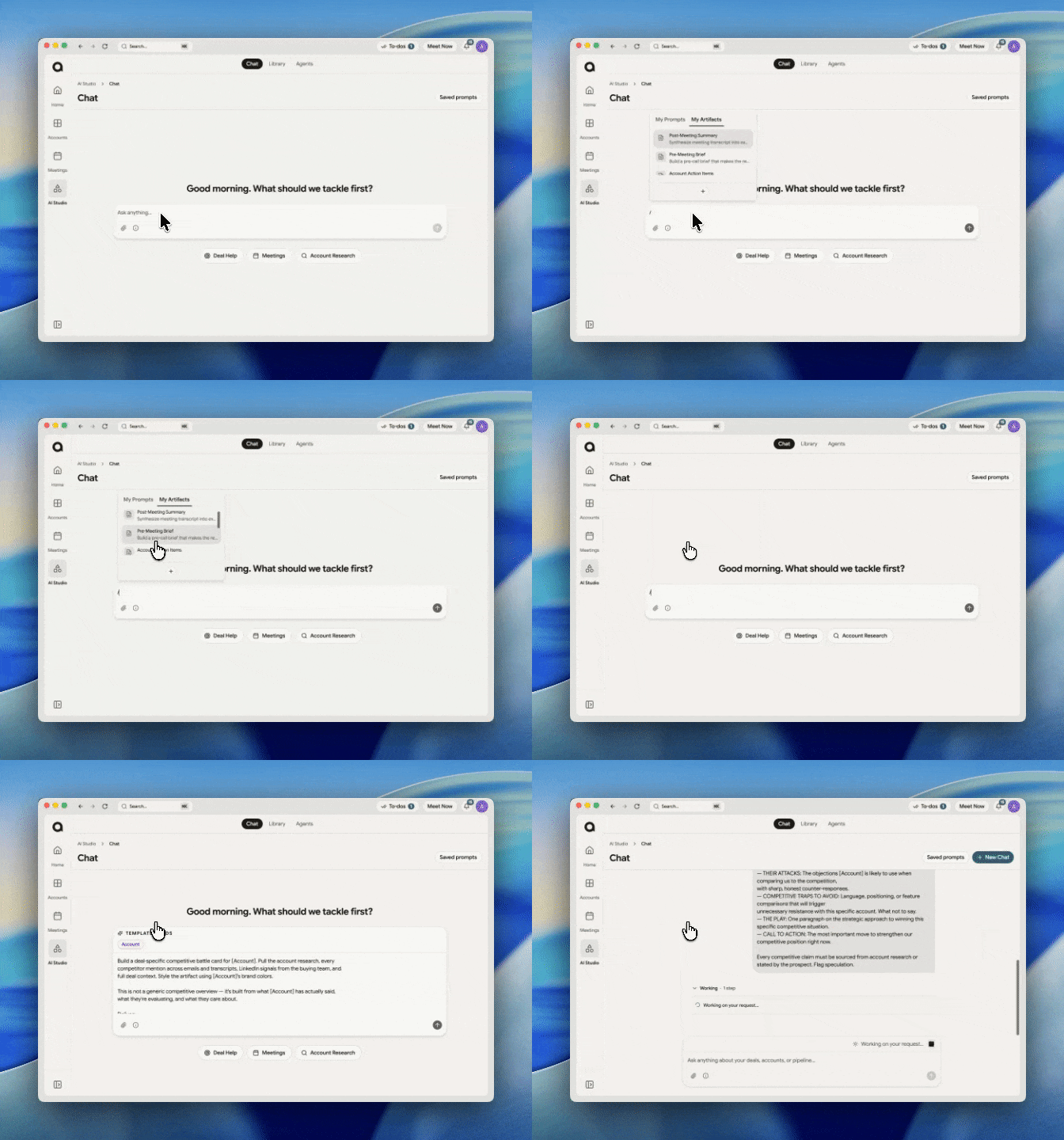
Chat is where everything is created — ask anything, then turn any answer into an artifact or an agent, right in the conversation.
Where to find it
- The Chat tab in AI Studio.
- Cmd K from anywhere.
- The Ask AI pill during a call.
What to ask
- Meetings: "What did we commit to on the Acme call?"
- Accounts: "What's new with Acme?"
- Schedule: "What's on tomorrow?"
- Follow-ups: "Draft a recap for Sarah."
Tips
- Type / to pull a saved prompt, or @ to bring an account or contact into context.
- Answers are grounded in your connected data and source-cited — expand a citation to verify.
- Save a good reply as a reusable prompt, or turn it into an artifact, in one click.
Saved prompts aren't a separate place — type / in any chat box to pull them up. A few to try: "Find me my next 10 customers," "Build a QBR deck for this account," or "Draft the follow-up from this meeting" — then reuse it, or save it as an agent. For ready-made ones our team runs, see .
Find anything
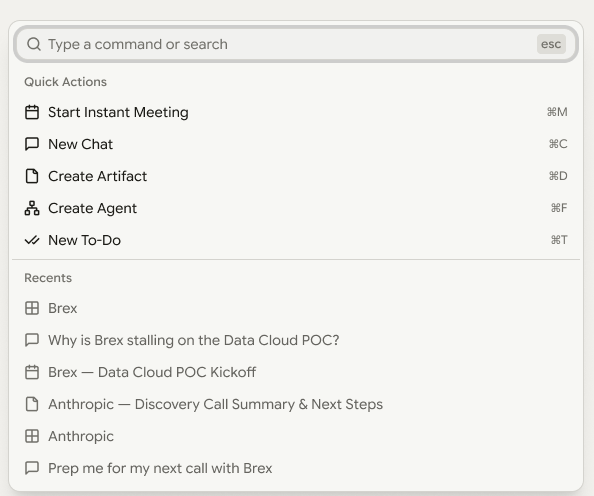
Press ⌘K from any screen to search across meetings, accounts, artifacts, and to-dos — or to launch a creation action.
Agent Recipes
Ten agents our team runs every week. Each one starts as a prompt you copy and paste into AnyTeam, which creates the agent and sets it to work on your accounts.
Paste a recipe as it is to get going, then reword it once you have seen what comes back. Each agent runs on its own schedule, spread across the week, so running all ten still arrives a piece at a time. More on how agents run is in .
How to use these
- Pick an agent below and copy its recipe.
- Paste it into AnyTeam.
- The agent is created and starts running on your accounts.
The ten agents
1. Daily Critical Actions
Everything demanding your attention today, from every system, in one ranked list.
Requires: Meetings · AnyTeam to-dos · Email · Slack · HubSpot
Show the recipe
Create an Urgent Actions agent that consolidates everything demanding my attention into one ranked list, pulled from every system I work in. TRIGGER - Weekdays at 6:00am PT (full brief) and 1:00pm PT (delta refresh: what changed, what's newly urgent, what I cleared). - On demand whenever I ask "what's urgent" or "what am I missing." SOURCES - Meetings: action items assigned to me in transcripts and recaps from the last 14 days. - AnyTeam to-dos: open tasks assigned to me, including ones I assigned myself. - Email: threads where someone is waiting on my reply, I made a commitment, or a deadline is named. - Slack: DMs and channel messages where I'm @-mentioned, asked a direct question, or committed to something — unanswered or unresolved. - HubSpot: deals I own — close dates, stage deadlines, tasks, and overdue next steps. URGENCY RULES — an item qualifies as urgent if ANY of these are true: Time - Due, expiring, or scheduled within the next 48 hours - Already overdue - HubSpot close date within 7 days, or a close date that has already passed Blocking - Someone else is blocked waiting on me - I owe a reply to a customer or prospect and it's been 24+ hours - I owe a reply to my manager or an exec and it's been 12+ hours Deal risk - Deal is in the current quarter and has no next step scheduled - A commitment I made on a call ("I'll send you X by Friday") has no matching sent email or logged activity Escalation - Any item that has appeared on this list 3 days running — surface it at the top and label it as slipping Explicitly NOT urgent: FYI mentions, threads where I'm cc'd but not asked anything, tasks due more than 5 days out with no dependency on me. OUTPUT - ONE ranked list, capped at 12 items. Rank by: blocking someone > revenue at risk > hard deadline > everything else. - Each item on 2 lines max: what it is, who's waiting, the deadline, and a direct link to the source (email thread, Slack message, HubSpot record, AnyTeam task). - Deduplicate ruthlessly — if the same commitment shows up in a call transcript, a Slack message, and a HubSpot task, it's one item with all three links. - Separate short section: "Deal deadlines this week" — every deal with a close date or contract date inside 7 days, with amount, stage, and last activity date. - Separate short section: "Cleared since yesterday" — so I can see progress and trust that things are actually falling off the list. - End with a one-line count: X urgent, Y slipping, Z deals closing this week. RULES - Every item must trace to a real source with a link. Never infer a commitment that isn't written down somewhere. - If I've already replied or the task is marked done, drop it — don't make me dismiss things twice. - Where the action is a reply or a follow-up, draft it and attach it to the item so I can send in one click. - No preamble, no encouragement, no summary paragraph. Just the list. - If a source is unreachable, say which one and keep going with the rest.2. Pre-Call Brief
Everything you need to walk into an external meeting prepared, 30 minutes before it starts.
Requires: Calendar · Meetings · HubSpot · Email · Slack
Show the recipe
Create a Pre-Call Brief agent that gives me everything I need to walk into an external meeting prepared, without opening five tabs. WHEN - 30 minutes before every external meeting on my calendar — any meeting with at least one attendee outside my company's email domain. - On demand when I say "brief me on [company]" or "prep my next call." POSTURE - Read-only. Deliver as a Slack DM to me if the meeting is inside 2 hours, otherwise attach it to my morning brief. SOURCES - Calendar: the invite — attendees, title, agenda, duration. - AnyTeam: every prior transcript and recap with this account, most recent first. - HubSpot: the deal record — stage, amount, close date, next step, forecast category, open tasks, and every contact on the account with title and last touch. - Email: the last 10 threads with anyone on the invite. - Slack: internal discussion about this account in the last 30 days. - Public sources: company news, funding, leadership changes, and job postings that touch our category. Last 90 days only. WHAT TO ASSEMBLE Who's in the room - Each external attendee: name, title, role in the deal (champion / economic buyer / technical evaluator / unknown), when I last spoke with them, and what they said that mattered. - Flag anyone on the invite I have never met. - Flag anyone missing who should be there. If the deal is past proposal and no economic buyer is invited, say so. Where we left off - The last conversation in three lines: what they asked for, what I committed to, and whether I delivered it. - Any commitment of mine with no matching sent email or logged activity goes at the very top, because it is the first thing they will notice. Open threads - Unresolved objections, unanswered questions, and anything either side said they would come back to. What changed since we last spoke - New stakeholders, company news, activity on the deal, or silence longer than my norm for this stage. Where to take it - 3 questions worth asking, grounded in what these people have actually said. Not generic discovery. - The one outcome that would make this call a success, and the next step to ask for. OUTPUT - One page. Everything through "Where we left off" fits on a phone screen without scrolling. - Every claim carries a link to its source, or a verbatim quote with the date and the call it came from. - If this is a first meeting with no history, say so in one line and give me the account research instead of padding the other sections. RULES - Quote verbatim, always attributed to a person and a date. - Never assign a stakeholder role I have not confirmed. If the economic buyer is unconfirmed, mark it unknown and put the confirming question in my 3 questions. - Skip internal meetings, 1:1s, and anything with no external attendee. - No preamble, no summary of the summary.3. Post-Call Follow-Up
A drafted recap, proposed CRM updates, and your action items — 15 minutes after you hang up.
Requires: Meetings · HubSpot · Email · Calendar · AnyTeam to-dos
Show the recipe
Create a Post-Call Follow-Up agent that turns every external call into a sent recap, an updated CRM, and a scheduled next step — drafted for me within 15 minutes of hanging up. WHEN - 15 minutes after every external meeting on my calendar ends. - On demand when I say "write up my last call." POSTURE - Drafts only. Nothing sends and nothing writes to HubSpot until I approve it. SOURCES - AnyTeam: the transcript and recap of the call that just ended. - HubSpot: the deal record as it stands right now. - Email: the thread this meeting came from, so the recap continues the conversation rather than starting a new one. - Calendar: my real availability for the next two weeks. WHAT TO PRODUCE 1. The recap email — drafted, ready to send - Addressed to everyone who attended, in the existing thread. - Their words for their problem, not mine. If they described the pain in a specific phrase, use that phrase. - What we agreed, what I owe them and by when, what they owe me and by when. - The next step with a proposed date and time taken from my actual calendar. - Under 150 words. 2. CRM updates — proposed, not applied - Next step, close date, stage, amount, forecast category, and any new contacts with their titles. - For each: current value, proposed value, and the quote from the call that justifies the change. 3. My action items - Everything I committed to, as AnyTeam to-dos, with due dates taken from what was actually said on the call. 4. What I should know - Anything said that changes the deal: a new stakeholder, a competitor, a budget or timing shift, or an objection I did not fully answer. - Up to 3 items, and only things that change what I do next. RULES - Commitments come from the transcript, never from what would be good to promise. If a date was not said out loud, leave it blank and flag it. - If someone asked a question I did not answer on the call, put it at the top of "What I should know." - If the call was internal, a no-show, or under 5 minutes, produce nothing and say why in one line. - Match the voice in my sent mail. No exclamation points, no "excited to," no "circling back."4. Account Research
Why to reach out to an account this week, based on what is actually happening there.
Requires: HubSpot · Meetings · Public web sources
Show the recipe
Create an Account Research agent that tells me why to reach out to an account this week, based on what is actually happening there rather than on a template. WHEN - Every Monday at 7:00am PT, across my target account list. - On demand when I say "research [company]." POSTURE - Read-only. No sending, no sequencing, no writing to the CRM. SOURCES - HubSpot: my target accounts, prior activity, closed-lost history, and who touched the account before me. - AnyTeam: any past meeting with the account, including my teammates' calls. - Public sources: news, funding, exec hires and departures, product launches, earnings commentary, and job postings from the last 90 days. - My own closed-won deals: what preceded them, so the trigger I look for is one that has actually worked here before. WHAT COUNTS AS A REASON TO REACH OUT Strong - A leadership change in the function we sell to, inside 60 days - Hiring for roles that only exist when our problem is being felt - Funding, acquisition, or a new market entry that changes how the team operates - Public commentary from an exec about a problem we solve - A closed-lost deal where the stated blocker has since changed — new budget cycle, the tool they chose has churned, or the person who said no has left Weak, and not worth an email on its own - A generic company milestone - A post with no bearing on how they work - "I saw you're growing" If nothing strong is true for an account, say so. An account with no reason this week is a real finding, not a gap to fill. OUTPUT - Up to 8 accounts, ranked by strength of reason. - For each: the account, the trigger in one line with a link and a date, who to contact and why that person specifically, and a 3-4 sentence draft that opens with the trigger. - A short section: "Checked, no reason this week" — names only, so I know they were looked at. - One line at the end: accounts checked, accounts with a strong trigger. RULES - Every trigger carries a link and a date. Nothing older than 90 days counts as news. - Never open a draft by complimenting the person or the company. - Do not invent a pain point. Say what changed and what it plausibly means for them, and let the question do the work. - Drop any account that already has an open deal or an active conversation. This list is for accounts I am not already in.5. Multithreading Map
Where each deal depends on one person, and who to bring in next.
Requires: HubSpot · Meetings · Email · Calendar
Show the recipe
Create a Multithreading agent that shows me where each deal is dangerously
dependent on one person, and who to bring in next.

WHEN
- Every Tuesday at 8:00am PT.
- On demand when I say "who am I missing on [deal]."

POSTURE
- Read-only.

SOURCES
- HubSpot: contacts on each open deal, with title, role, and last activity date.
- AnyTeam: transcripts across the account — who attended, who spoke, who asked
  questions, and who went quiet.
- Email and calendar: who I have actually exchanged messages or time with, and
  how recently.

THE MAP — for every open deal closing this quarter or next
- Everyone engaged, with title and the date they last engaged.
- Their function: economic buyer, champion, technical evaluator, end user,
  procurement, security, legal, blocker, or unknown.
- Engagement state: active (touched within 14 days), cooling (15-30 days), gone
  quiet (30+ days), departed.
- Anyone who has been in the room but has never spoken.

RISK FLAGS — name these explicitly
- Single-threaded: one contact carrying the whole deal for 30+ days
- No economic buyer identified past proposal stage
- Champion gone quiet, with the date they went quiet and their last message
- Procurement, security, or legal not engaged on a deal expected to close inside
  30 days
- A stakeholder who attended once and never returned
- A function that appears in my closed-won deals but is absent from this one

OUTPUT
- Ranked by dollars at risk, not by number of gaps.
- Per deal: the map, the flags that fired, and one specific action — who to ask
  for, how to ask, and which existing contact is best placed to introduce me.
- Draft the introduction request as a message I can send, in the thread where it
  belongs.
- Cap at 10 deals. If more qualify, say how many were left off.

RULES
- Assign a role from what someone said or did, not from their title. A VP who has
  never spoken on a call is not a confirmed economic buyer.
- Where a role is unconfirmed, mark it unconfirmed and give me the question that
  would confirm it.
- Exclude closed and closed-lost deals.
- No coaching language. Tell me the gap and the ask.
6. Competitive Signal Desk
What competitors are doing inside your live deals, in the words of the people evaluating you.
Requires: Meetings · HubSpot · Email · Slack
Show the recipe
Create a Competitive Signal Desk agent that tells me what competitors are doing inside my live deals, in the words of the people evaluating us. WHEN - Every Wednesday at 9:00am PT. - On demand when I say "what are we hearing about [competitor]." POSTURE - Read-only. Post to [#competitive] in Slack and save a full copy to my library. SOURCES - AnyTeam: external call transcripts from the last 7 days. - HubSpot: closed-lost reasons and competitor fields on deals closed in the last 30 days. - Email: threads where a competitor is named. WHAT TO PULL 1. Competitor mentions — every named competitor this week - The verbatim quote, the speaker's title and company, the call, and the date. - What they were comparing on: price, features, incumbency, integration, switching risk, or something else. - How we responded, verbatim, and what happened next in the conversation. 2. What is landing - Responses after which the prospect agreed, asked a follow-up question, or dropped the comparison. 3. What is not landing - Responses after which the prospect went quiet, repeated the objection, or changed the subject. 4. New claims - Anything a prospect attributes to a competitor that we have not heard before — a feature, a pricing change, a positioning shift. Mark as unverified. 5. Losses - Deals lost to a competitor in the last 30 days, with the stated reason and a link to the call where the outcome was most likely decided. OUTPUT - Under 20 lines in Slack. Full detail in the saved copy. - Grouped by competitor, ordered by how many deals each appeared in. - Close with the single comparison we faced most this week and the response that worked best, quoted. RULES - Quote verbatim. Never tidy up what a prospect said about a competitor. - Attribute by title and company, never by individual name. - Mark every competitor claim as reported, not confirmed. We are hearing what the prospect believes, which is not always accurate. - If no competitor was named this week, say so in one line. That is useful information, not an empty result.7. Voice of the Customer
The week's customer quotes, verbatim, in the sales channel every Friday.
Requires: Meetings · Slack
Show the recipe
Create a Voice of the Customer agent.

WHEN: Every Friday at 2:00pm PT.

SOURCE: All AnyTeam meeting transcripts from external calls in the past 7 days.

WHAT TO PULL: 5-8 notable customer quotes. Prioritize, in this order:
  1. Pain in their own words — how they describe the problem today
  2. Reaction to what they saw — praise, surprise, "we could use this for..."
  3. Objections and blockers
  4. Competitor or current-tool mentions
  5. Anything quotable about impact, cost, or time saved

FORMAT: Post to #sales-demo in Slack.

  *Voice of the Customer — week of [date]*

  > "[exact quote]"
  — [Title], [Company] · [call type]
  _Why it matters:_ [one line]

  Close with: one sentence on the theme that showed up most this week.

RULES
- Quote verbatim. No cleaning up, no paraphrasing, no composites.
- Attribute by title and company, not by individual name.
- Skip the week entirely if there were fewer than 2 external calls — say so in
  one line rather than padding.
- Keep the whole post under 15 lines.
8. Renewal & Expansion Watch
Which customers are ready to grow, and which are quietly at risk.
Requires: HubSpot · Meetings · Email · Calendar · Slack
Show the recipe
Create a Renewal and Expansion agent that tells me which existing customers are
ready to grow and which are quietly at risk, early enough that I can do something
about it.

WHEN
- Every Thursday at 8:00am PT.
- On demand when I say "how is [account] doing."

POSTURE
- Read-only.

SOURCES
- HubSpot: closed-won accounts I own — contract dates, renewal dates, amounts,
  and any open opportunities.
- AnyTeam: transcripts and recaps of every call with these accounts.
- Email and calendar: frequency and direction of contact over the last 90 days,
  compared against the 90 days before that.
- Slack: internal channels where these accounts are discussed.

EXPANSION SIGNALS
- A new team, region, or use case mentioned on a call
- A new leader hired into a function we do not serve there yet
- Someone asking about a capability outside what they bought
- Usage or seat growth mentioned by the customer
- A champion who has been promoted or had their scope expanded
- Specific language about outcomes: time saved, a number that moved, a process
  replaced

RISK SIGNALS
- Renewal date inside 90 days with no conversation on the calendar
- Champion departed, or gone quiet for 45+ days
- Contact frequency down by more than half versus the prior 90 days
- A complaint or escalation raised on a call with no follow-up recorded
- A competitor named by an existing customer
- Meetings increasingly declined, shortened, or rescheduled

OUTPUT
- Two lists, expansion first.
- Each account on 3 lines: the account, the signal with a verbatim quote and
  date, the renewal date and amount, and the specific next move.
- For every risk item, draft the outreach and attach it.
- A short section: "Renewals inside 90 days" — date, amount, and whether a
  conversation is scheduled.
- One line at the end: X expansion signals, Y accounts at risk, Z renewals inside
  90 days.

RULES
- An expansion signal is something the customer said, not something I hope is
  true.
- Never read silence as satisfaction. Silence belongs in the risk list.
- Any account with no contact at all in 90 days goes to the top of risk,
  regardless of other signals.
- Exclude accounts I do not own.
9. Weekly Sales Forecast
The number, what moved, and an honest read on what you are carrying that you should not be.
Requires: HubSpot · Meetings · Email · Calendar
Show the recipe
Create a Weekly Sales Forecast agent. WHEN - Every Friday at 7:00pm PT. - On demand when I say "run my forecast." POSTURE - Read-only. Never write to the CRM or any other system. - Deliver as an artifact saved to my library. No email, no Slack, no posting. - Start at approval-required; auto-run stays off until I turn it on. CALENDAR - Fiscal year runs Feb 1 - Jan 31. Q1 Feb-Apr, Q2 May-Jul, Q3 Aug-Oct, Q4 Nov-Jan. - Head every report with: fiscal quarter, week number in the quarter, and days remaining in the quarter. READS - CRM: my open deals - amount, stage, close date, forecast category, next step, contact roles, stage entry dates, and close-date change history. The change history matters most; it is how movement gets detected. - AnyTeam: transcripts and recaps from external meetings on those deals. - Email and calendar activity per deal. - My own input: context I've given about a deal - verbal commits, budget news, political shifts. Label it as mine, not as data. - Prior runs: the last 4 of this agent's own reports, for week-over-week deltas and the accuracy check. THE MODEL Baseline (CRM math) - Weighted pipeline: sum of (amount x stage probability). Use my CRM's stage probabilities if calibrated, otherwise my trailing 4-quarter stage-to-close rates. Say which you used. - Commit / Best Case / Pipeline / Closed-Won. - Coverage vs. remaining quota (flag under 3x). Gap to number in dollars and %. Signals (0-10 per deal, rule-based, show which fired) Positive: firm next meeting on the calendar; new stakeholder engaged in the last 14 days, especially finance, procurement, security, or legal; prospect- initiated replies within 48 hours; buying language on the last call (timeline, pricing, contract, rollout, "when we"); stage advanced this week. Negative: no activity in 14+ days (7+ on short cycles); no prospect reply in 7+ days; one-sided activity - high outbound, flat inbound; single-threaded for 30 days; champion gone quiet or departed; time in stage over my historical average; close date pushed (escalate hard on the second push); no economic buyer past proposal; competitor named in the last two calls; objection raised with no resolution in any later interaction. My judgment - Where my read disagrees with the signals, show both and name the gap. Do not quietly average them. OUTPUT 1. The number Weighted / Commit / Best Case / Pipeline / Closed-Won, coverage, gap to quota. Each with a week-over-week delta and a one-line reason for the change. 2. Moving up / moving down Deals whose score changed since last week, ranked by dollars at risk. For each: what changed, the evidence (quote the call or name the activity), and what it implies for the forecast category. 3. Signal scores 0-10 per deal with the signals that fired. Never a % likelihood of closing. 4. Forecast update queue - informational only Deals where the CRM no longer matches reality: close date past or not credible, stage ahead of the conversation, amount changed on a call but not in the CRM, forecast category out of step with the signals, next step missing or stale. Give current value, suggested value, and the evidence. I'll make the edits myself. 5. Ask me Up to 5 questions no system can answer, and only where the answer would change the forecast. 6. Accuracy check What I committed 4 weeks ago vs. what closed. Name my sandbagging or happy-ears pattern plainly. If I'm consistently off in one direction, say so every week until it changes. RULES - Every signal traces to a link or a quote. No inferred momentum. - The score is rule-based and auditable, not a trained probability. - Rank by dollars at risk, not deal count. - Be blunt about deals I'm carrying that shouldn't be in the forecast. - Top section fits one screen. Detail below the fold. - If a source is stale or unreachable, say which one and how it limits the read.10. Deal Review Prep
What changed, the three questions you will be asked, and what you need from your manager.
Requires: HubSpot · Meetings · Email · Calendar
Show the recipe
Create a Deal Review Prep agent that gets me ready to defend my pipeline in front
of my manager, including the parts I would rather not bring up.

WHEN
- Every Monday at 7:30am PT, or 2 hours before a pipeline review on my calendar,
  whichever comes first.
- On demand when I say "prep me for deal review."

POSTURE
- Read-only. Deliver as an artifact saved to my library. Nothing posted, nothing
  sent.

SOURCES
- HubSpot: my full pipeline, and everything that changed since the last review —
  stage, amount, close date, next step, forecast category.
- AnyTeam: transcripts from the last 7 days on any deal in the review.
- Prior runs of this agent, and the last 4 runs of my forecast agent.
- Email and calendar activity per deal.

WHAT TO PREPARE
1. What changed since last review
   - Every deal that moved in either direction, with the evidence and one line on
     why.
   - Deals that did not move at all, and how many reviews in a row that is now
     true.
2. The three questions I am most likely to be asked
   - Drawn from what actually looks weak: the largest deal with no next step, the
     biggest close-date push, the deal that has sat in one stage longest.
   - For each: the question, the honest answer, and what I am doing about it.
3. What I need
   - Where a deal needs someone above me — an exec sponsor, a pricing exception,
     a security review, a reference call.
   - For each: the deal, the ask, the dollars it unblocks, and the date it
     becomes a problem.
4. What I am carrying that I should not be
   - Deals in my forecast with no evidence behind them. Name them before someone
     else does.
5. Commitments from last review
   - What I said I would do, and whether I did it.

OUTPUT
- Two pages maximum. Sections 1 and 2 on the first page.
- Every claim traces to a link or a quote with a date.
- Plain text I can read on the way into the room. No slide formatting.

RULES
- Be blunt. A prep document that flatters my pipeline fails in the room instead
  of failing here, which is worse.
- Never soften a slipping deal into "progressing."
- If I missed a commitment from the last review, put it in section 5 and do not
  bury it.
- If nothing meaningful changed this week, say so in one line rather than
  manufacturing movement.
Making these your own
- Say the job you want done, not the steps to get there.
- Use @ to pin an account or contact when a recipe could apply to several.
- Answers are source-cited, so you can expand a citation to see where something came from.
- Edit a recipe after its first run. Seeing real output is the quickest way to work out what to add.
Library
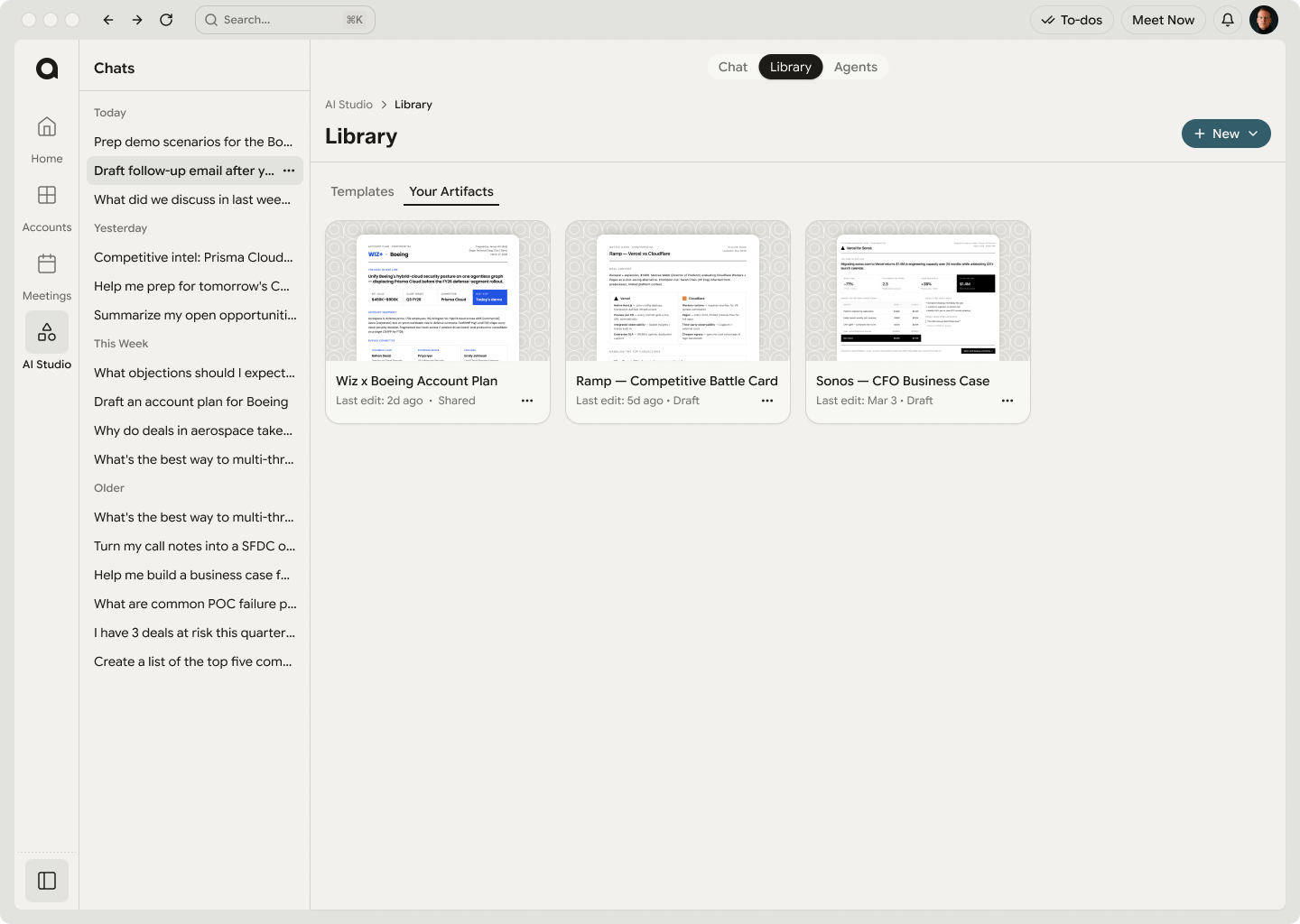
Everything you make in Chat auto-saves here — your artifacts and templates, versioned and searchable, with no explicit save.
What's in it
- Artifacts — decks, briefs, one-pagers, and docs you've generated.
- Templates — reusable formats you can regenerate on demand.
Save and reuse
- Every edit creates a new version — switch to or export any past version.
- Save an artifact as a template to reuse its format.
- Link an artifact to an account and it also appears in that account's Artifacts tab.
Share
- Share via link with Workspace, Restricted, or Anyone with the link access, download it, or push it to your CRM.
- External shares generate a customer-safe version — internal notes and private data are stripped, and links are revocable and time-limited.
Agents
Agents are automations you set up in plain language — describe one once, and it runs on its own. Every send still waits for your approval.
How it works
- Describe it in Chat — e.g. "every Monday, scan my accounts for new signals and post a digest to Slack."
- It runs on a schedule or trigger, pulling from everything you've connected.
- You review and approve before anything is sent.
- Manage it anytime — Run Now, Pause, or Edit.
Where they live
- Manage every agent under AI Studio → Agents, where you can watch what's running.
- To-dos tracks your work; agents automate it. Edits and deletes undo for two weeks.
Accounts
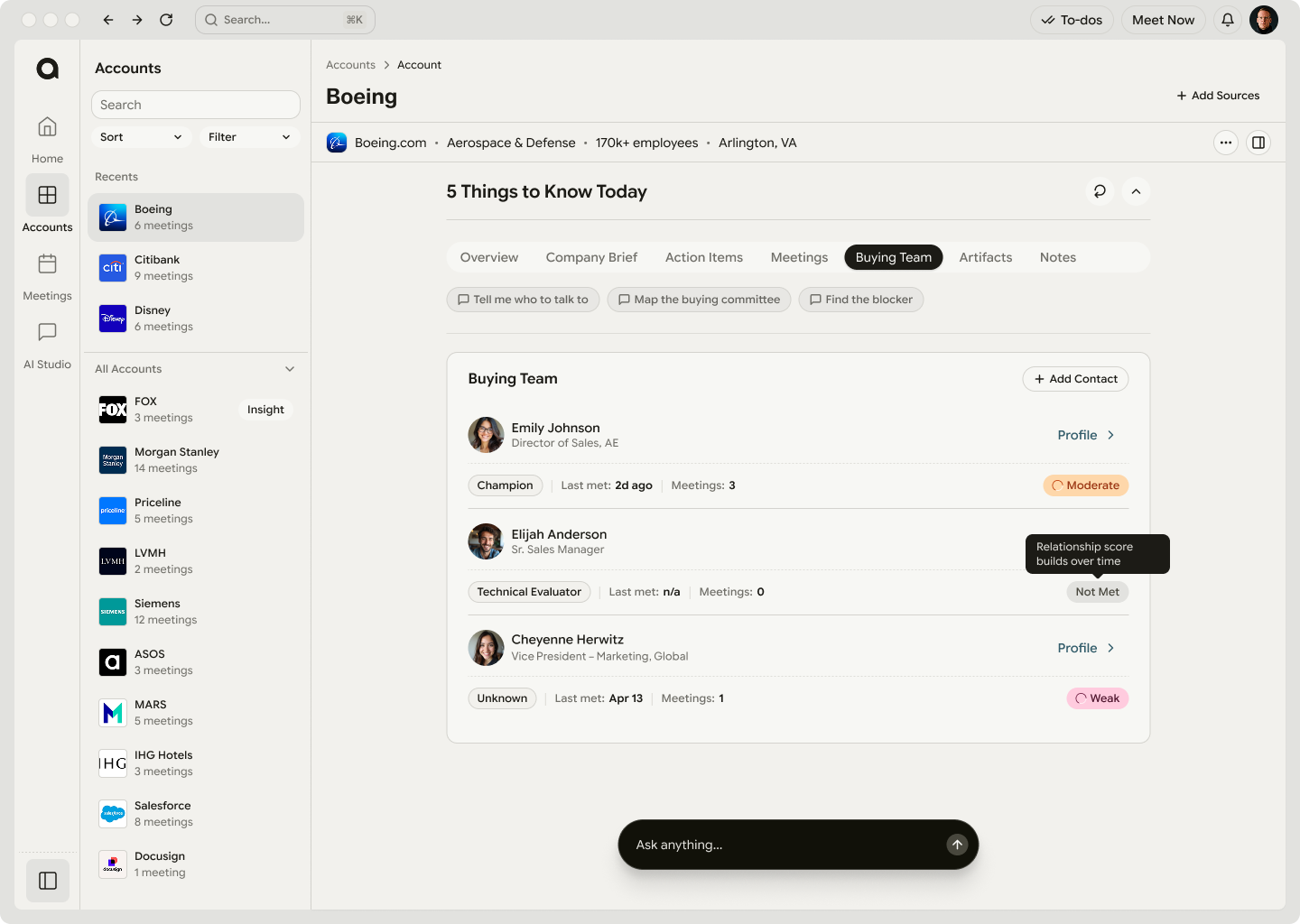
Everyone you sell to, in one place — with AnyTeam researching each account for you.
Add an account
- Go to Accounts → New account.
- Paste a company name or URL — AnyTeam fills in public details. You can bulk-upload a spreadsheet too.
- Research starts automatically.
Account 360
Open an account for the full picture, with 5 Things to Know Today pinned on top.
- Deal feed — a snapshot, recent signals with sources, and open to-dos.
- Company brief — a source-cited profile: overview, recent news, key people.
- Buying team — stakeholders with roles and relationship strength.
- Meetings, Artifacts, Notes, and Sources for the account.
Refresh research
- Open the account and select Refresh for the latest.
- Some signals unlock once you connect your CRM.
To-dos
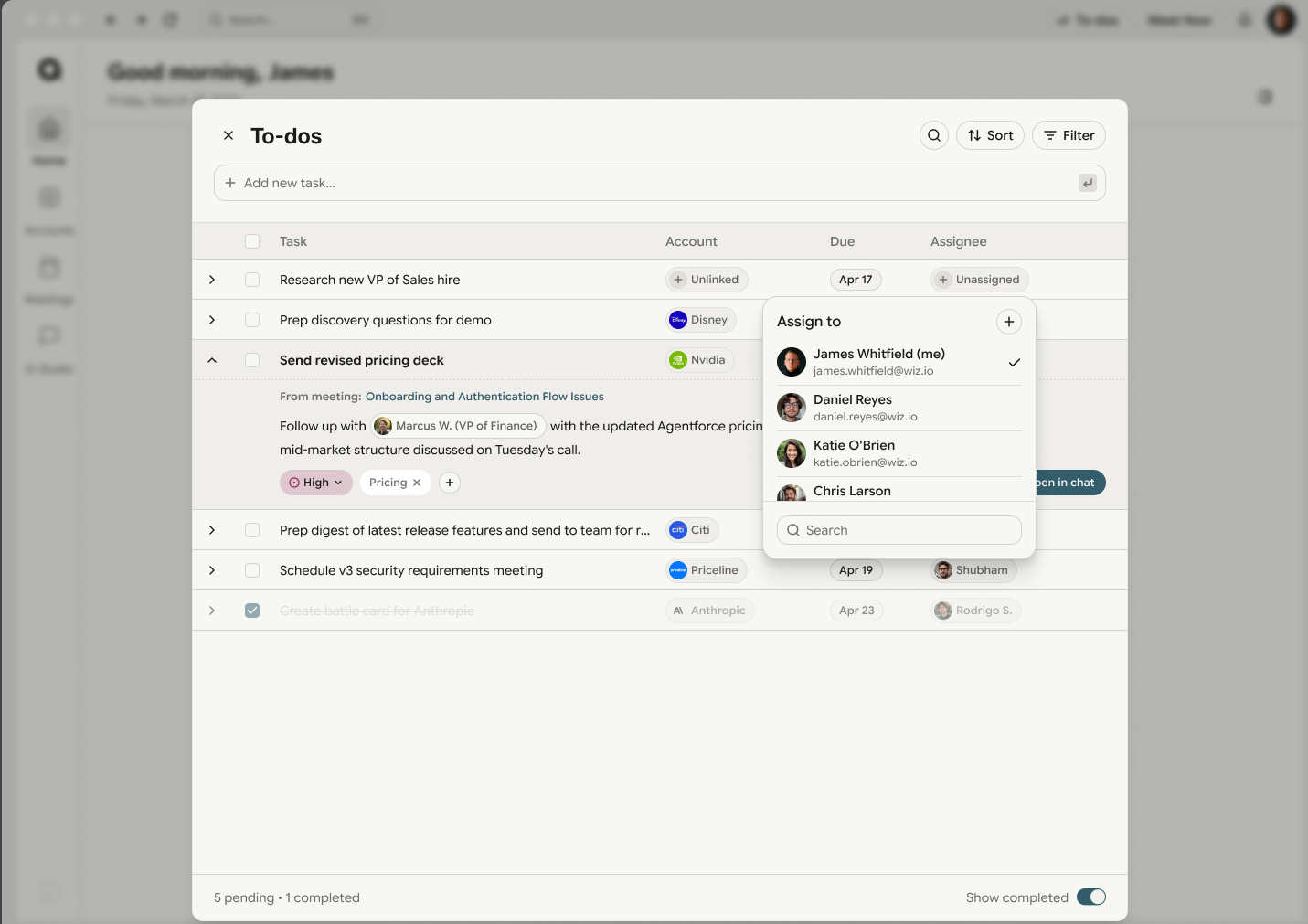
Your task manager — every follow-up, action item, and reminder across every account, in one overlay you can pull up from anywhere.
One overlay, everywhere
- Open To-dos from any screen — from Cmd K or the top bar.
- Sort or filter by type, priority, account, or due date, and search by text.
Captured for you
- Action items from meetings, emails, and CRM changes land here automatically.
- Add your own with a title, due date, and priority, and link any to-do to an account.
You stay in control
- Check off, snooze, or reprioritize as you go.
- Anything that sends — an email, a CRM update — still waits for your approval.
Want a task to run itself on a schedule? That's an agent — see . To-dos tracks the work; agents automate it.
Connect your calendar and email
Connecting your calendar and email turns on meeting prep and richer research.
Connect your account
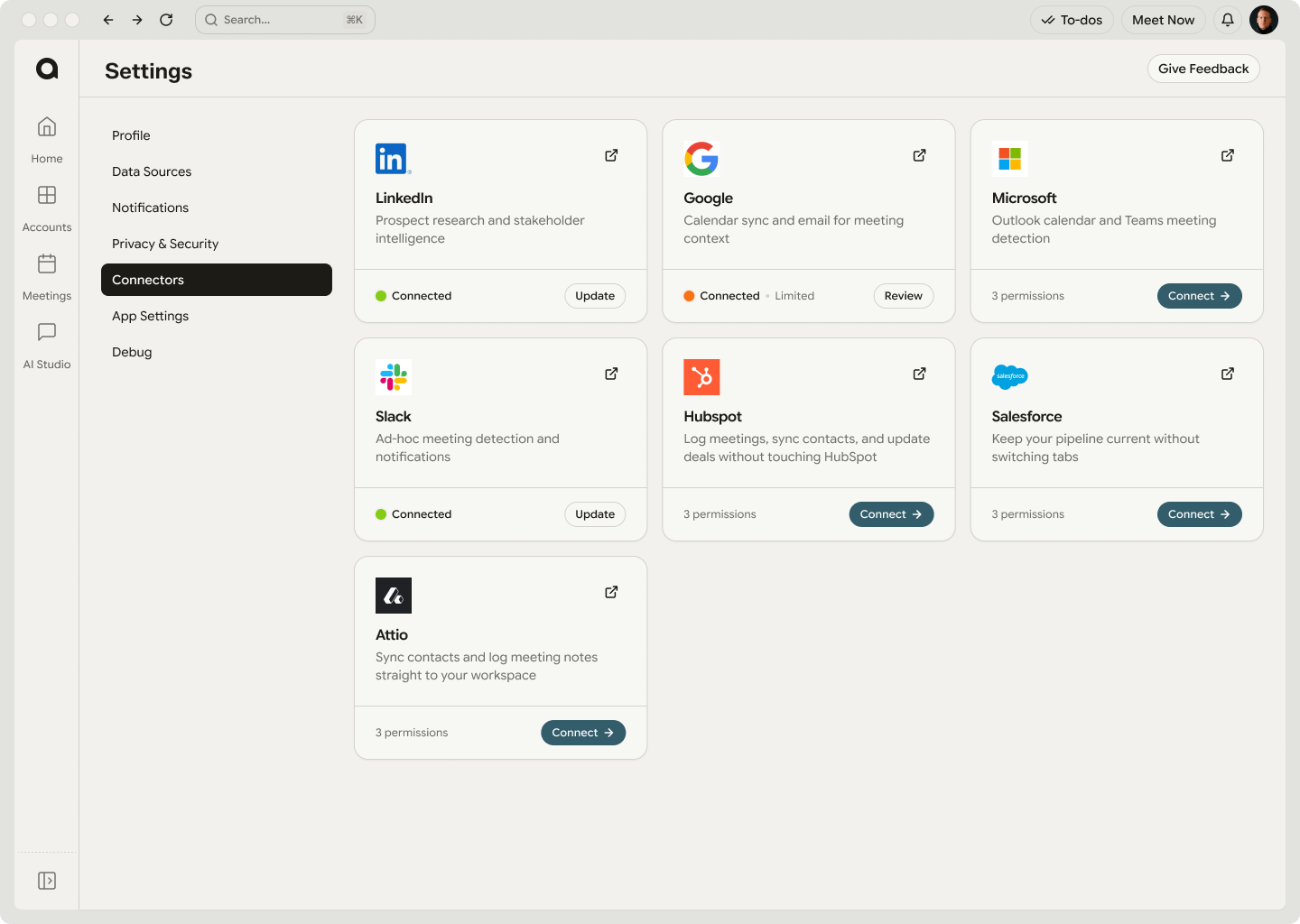
- Go to Settings → Linked accounts.
- Connect Google Workspace or Microsoft 365, and approve calendar and email access.
Google Workspace covers Calendar, Gmail, and Drive. Microsoft 365 covers Outlook calendar & mail and OneDrive.
What it turns on
- Meeting detection and prep.
- Meeting history.
- Email context in account research.
Other integrations
- Slack — adds the AnyTeam app to your workspace.
- HubSpot — connects your CRM objects and account data.
- Salesforce — approve or assign the Connected App to connect.
- Attio — approved at the workspace level.
Connecting a CRM is read-only — AnyTeam never writes to it without your approval. In tightly managed orgs, an admin may need to approve AnyTeam or grant consent before some tools finish connecting.
Notifications
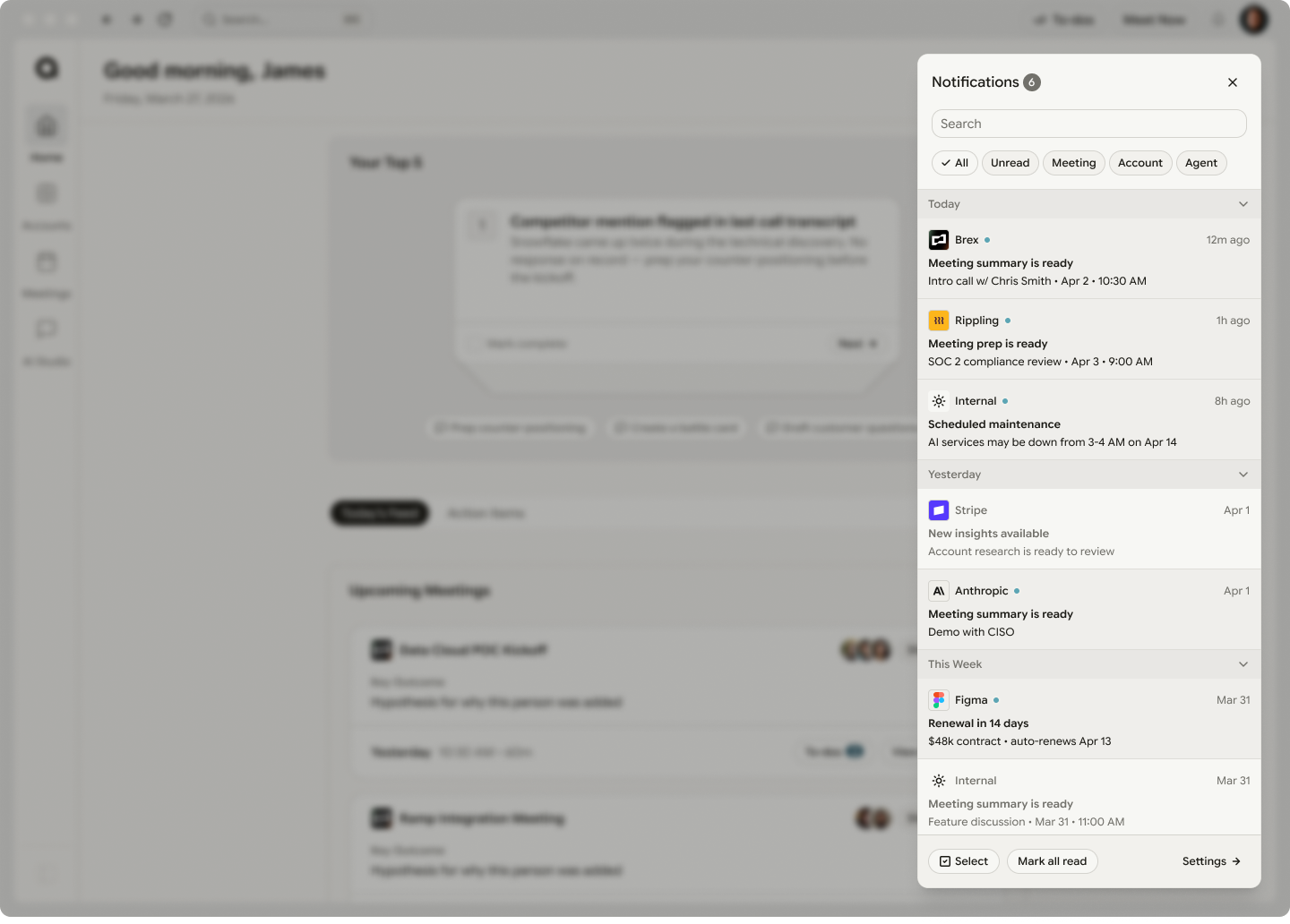
- Settings → Notifications. Choose what you're notified about and where: desktop, mobile, web, email.
Updates
- Settings → About → Check for updates.
Team features
Tools for sales leaders and teams: a live command center, sharing, and workspace controls.
Management View
- A dashboard for managers that pulls the day's most important signals into one place.
- Today's Digest — key developments from your meetings and deals.
- What shifted today — a live feed of everything that moved since this morning.
- Team Pulse — how your team and its deals are trending, with a scorecard per rep.
- Deals needing attention — ranked, so nothing important slips.
- Open any deal in a drawer for the full picture without leaving the view.
Appears automatically for members with a manager role.
Sharing
- Share any meeting summary, briefing, or AI artifact with a link.
- Choose the audience: specific people, a group, or general access.
- Shared with me collects everything teammates have shared with you.
- Get notified the moment something is shared, and jump straight to it.
- Admins can set an organization-wide sharing policy.
Teams & roles
- Manage everyone in Settings → Members, with clear Admin and Member access levels.
- Assign reporting lines — a person can report to more than one manager.
- Owners can grant admin access or transfer ownership.
- Track seats in use, and add or remove members in a click.
- Members can invite colleagues directly.
Available on Team workspaces.
Workspaces
- A pill in the title bar always shows which workspace you're in.
- Switch between teams from one menu, with the current one marked.
- Each workspace keeps its own data, separated from the rest.
Home
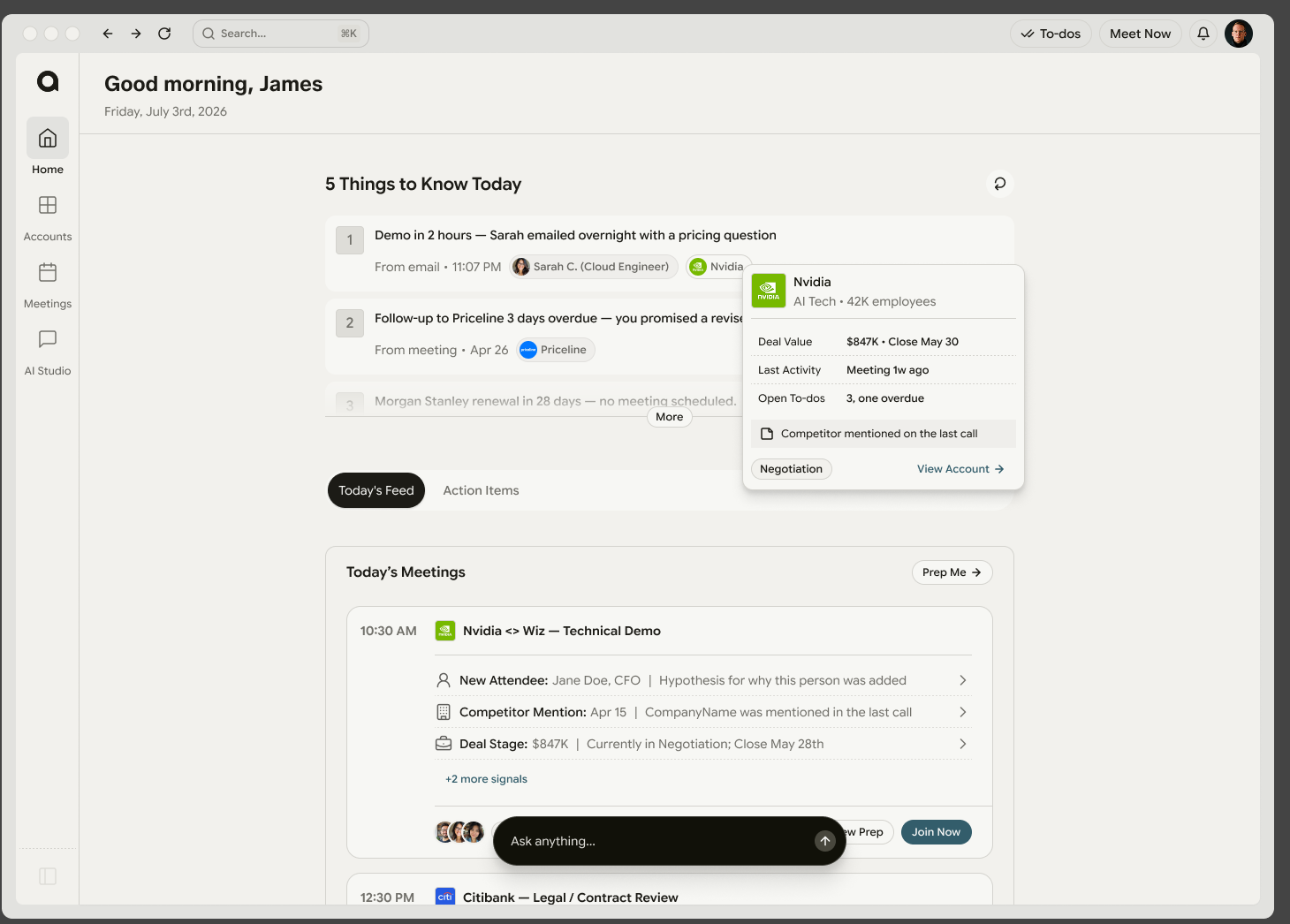
Where you land — the day's most important things, pulled from everything you've connected. Not a dashboard: just what needs doing.
5 Things to Know Today
- The highest-priority items across your calendar, email, CRM, meetings, and signals — pinned at the top.
- Each carries a source, a timestamp, and entity chips. Open one in chat, or dismiss it and the list reflows.
- Hit Refresh to regenerate Home on demand.
Today's Feed & Action Items
- Today's Feed — the most urgent items, with meeting cards that link to their prep brief.
- Action Items — near-due to-dos as cards, each linking back to its source.
Settings & privacy
Your profile, your data sources, what AnyTeam remembers, and how your information stays private.
Profile & Data Sources
- Settings → Profile — edit who you are, what you sell, and how you work; changes apply across your sessions.
- Settings → Data Sources — the files and URLs feeding AnyTeam's context. Add, exclude, or re-index any source.
- Settings → App Settings — active sessions (revoke individually or all at once), a one-bundle data export, and account deletion.
Memory — what AnyTeam remembers
Memory is the set of facts AnyTeam has learned about you and your accounts — your writing style, follow-up cadence, competition, and deals. Each fact carries a source and a last-updated date.
- Search, correct, or remove any fact in Settings → Profile.
- It's empty at first and fills in as you work — sharper by the day.
Under the hood, Memory captures your calls, emails, and CRM updates, connects them to accounts, deals, and people, and compounds — every interaction makes the whole system smarter.
Privacy
- Nothing outbound sends without your approval — every email, CRM write, and Slack post is queued for review.
- Content is scoped to your workspace and account; personal context you add is never pooled with other users.
- Insights are source-cited — expand any one to see the exact quote or record behind it.
- External shares are customer-safe: internal notes and risk cards are stripped, and links are revocable and time-limited.
Watch & learn.
Short walkthroughs of the core surfaces. The written guides go deeper on every feature.